Retouch workflow demonstration inside Photoshop
Retouch one image
Choose demonstration
Retouch more jewelry images in less time.
Automate jewelry retouching in Photoshop. Your retoucher keeps final quality control.
Workflow preview
A first retouch, ready for your finishing touches.
- 01
Choose the image
- 02
Set the material
- 03
Finish in Photoshop
View detailed steps
- Load from a Photoshop layer, the canvas or a local file.
- Choose the metal and the processing mode that fits the piece.
- Continue from the returned result and make the final quality decisions.
Turn a folder into layered PSDs.
- 01
Choose two folders
- 02
Check the batch
- 03
Continue from layered files
View detailed steps
- Select where the source images are and where the PSDs should be saved.
- Review the image count, settings and credit estimate before confirming.
- Each successful image is saved as a PSD; existing outputs are skipped on the next run.
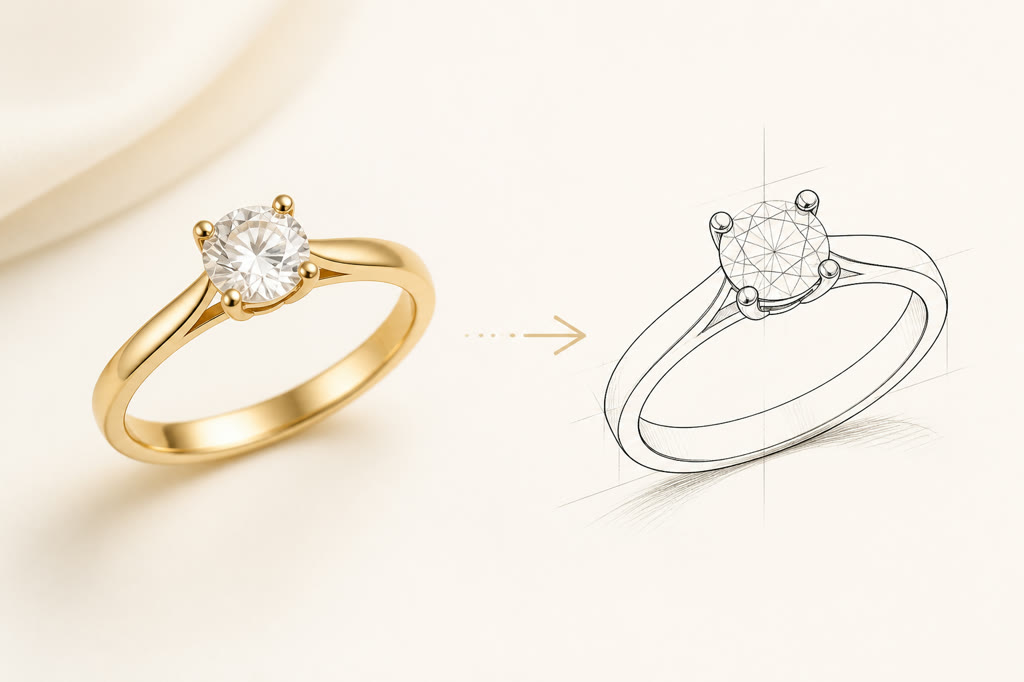
Turn a jewelry photo into line art you can refine.
- 01
Load the photograph
- 02
Run Line art
- 03
Refine the layer
View detailed steps
- Choose the jewelry image you want to turn into line art.
- Start the workflow from the Jewelry Éclat Photoshop panel.
- Use the returned line-art layer as the base for the final drawing.
Test Éclat with your images
Opens your email app to request a test.